

What Is IMEI? Meaning, Uses & How to Find Your IMEI
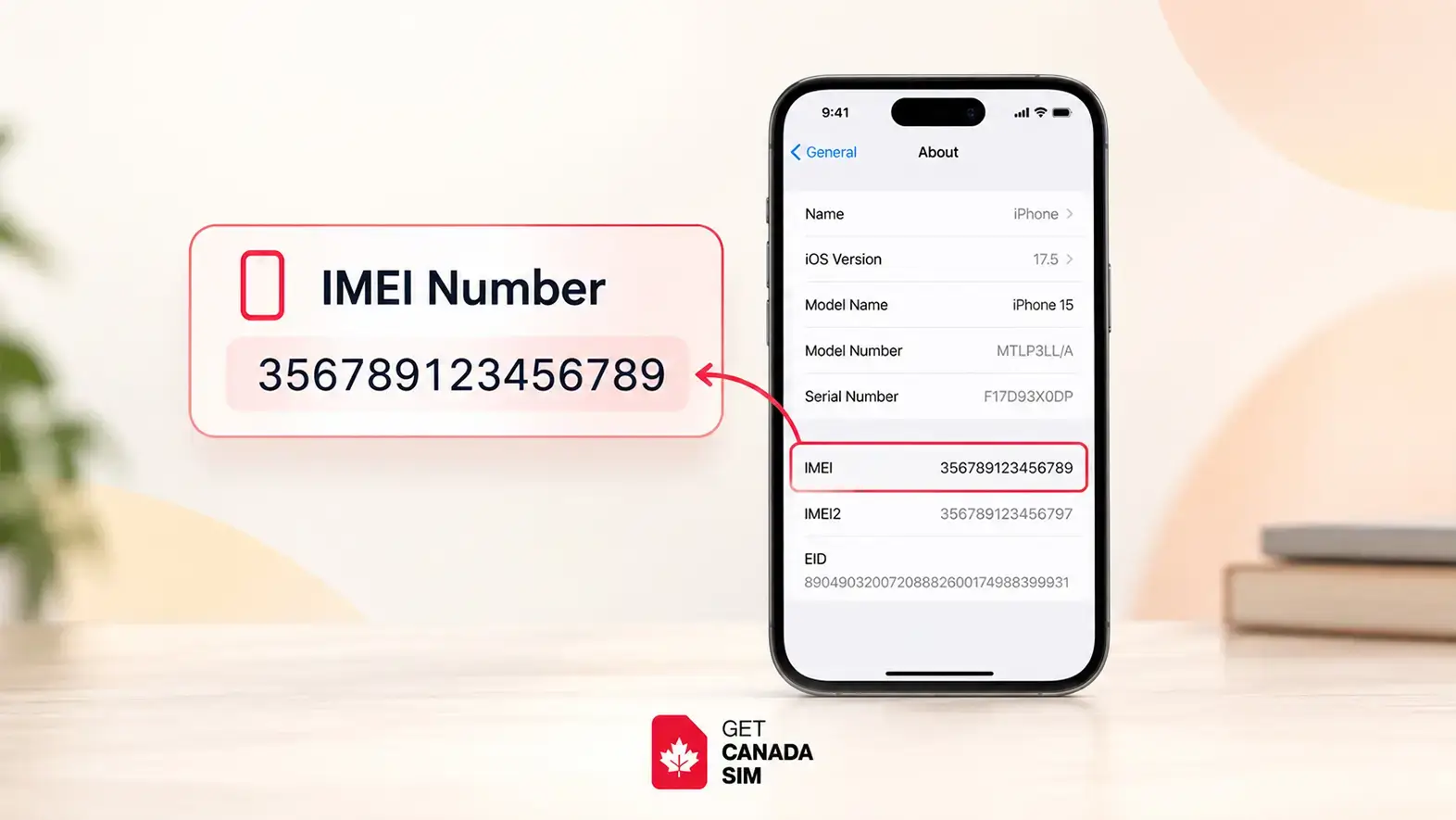
You open your phone settings, scroll through the device information, and suddenly find a 15-digit number labelled IMEI.
Sometimes there is one. Sometimes there are two. On an eSIM-compatible phone, you may also see an EID, another device identifier connected to eSIM technology. You can learn more about what an EID is and what it means on your phone.
It looks technical, but the idea behind it is surprisingly simple.
IMEI stands for International Mobile Equipment Identity. It is a unique 15-digit identifier used to identify a cellular device on a mobile network.
The easiest way to remember it is:
Your IMEI identifies the phone. Your SIM identifies your mobile subscription.
That distinction becomes useful when you change carriers, buy a used phone, report a lost device, troubleshoot mobile service, or check whether a phone may work with another network.
And if you're checking your IMEI because you're preparing to use your phone in Canada, don't stop at the number itself. Your phone also needs to be unlocked and compatible with the network you want to use. Our guide to checking whether your phone will work in Canada walks through those checks.
If you're considering an eSIM, you can also start with how to know if your phone supports eSIM before choosing a mobile plan.
IMEI Identifies the Device, Not the SIM
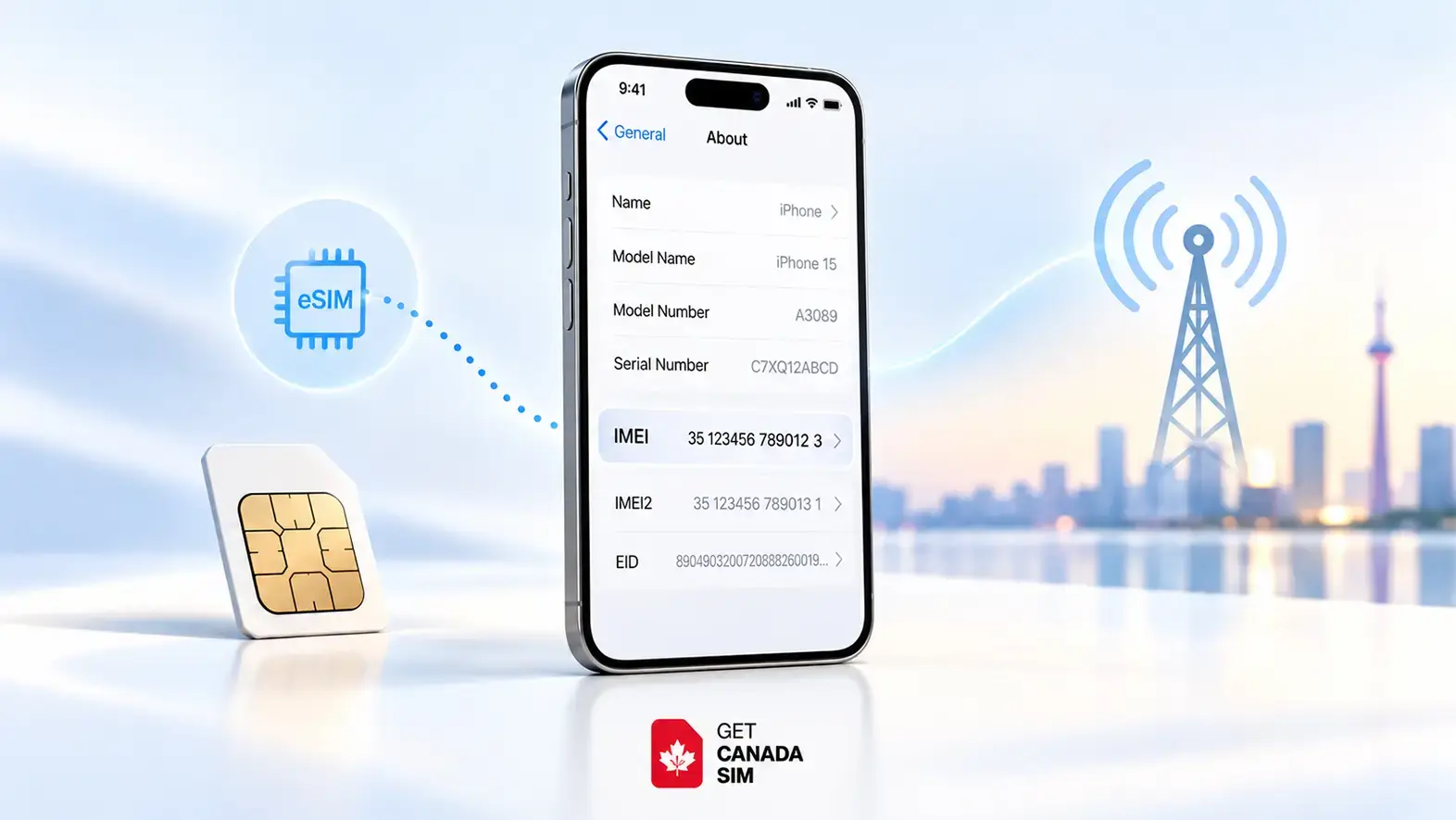
This is the most important part to understand.
Your phone and your mobile service are separate things.
The IMEI belongs to the cellular device or cellular radio. Your SIM or eSIM, meanwhile, contains information associated with your mobile subscription.
Think of it this way:
| Identifier | What it identifies |
|---|---|
| IMEI | Your cellular device |
| IMEI2 | A second cellular identity on supported devices |
| ICCID | A particular SIM or eSIM profile |
| EID | The embedded eSIM system |
| Serial number | The manufacturer's individual device record |
| Phone number | The number people use to call or text your mobile line |
So if you've searched for “what is IMEI SIM?”, the useful answer is that an IMEI is not a SIM number.
Replacing your physical SIM normally does not turn your phone into a different device with a completely new primary IMEI. You are changing the mobile subscription being used by the device, not the identity of the hardware itself.
If the SIM side is what you are trying to understand, our guide to what a physical SIM card is and how it works explains that separately.
What the IMEI Is Actually Used For
Your IMEI usually stays unnoticed in the background. You can use your phone for years without ever needing to type it anywhere.
But mobile networks and device-support systems can use the IMEI to recognize the equipment connecting to them.
The GSMA maintains IMEI-related services used across the mobile ecosystem. Network operators can use IMEI and Type Allocation Code information to understand what kinds of devices are connecting to their networks and some of the technical characteristics associated with those devices.
In everyday life, your IMEI can become useful for things such as:
- identifying your phone when dealing with a carrier or manufacturer
- checking device information
- checking whether a device has been reported lost or stolen
- disabling a lost or stolen cellular device through a mobile provider
- device repair or support
- buying or selling a used phone
- troubleshooting network compatibility
Google, for example, specifically notes that a mobile service provider can use a device's IMEI when disabling a lost device.
It is therefore an important identifier, but it is not a password, phone number, SIM number, or GPS tracker.
The Meaning Behind the 15 IMEI Digits
An IMEI may look like one long random number:
12345678 123456 7
But the 15 digits have a structure.
The GSMA describes an IMEI as containing three main parts: the Type Allocation Code (TAC), serial number, and check digit.
A simplified way to see it is:
| Part | Example | Purpose |
|---|---|---|
| TAC | 12345678 | Identifies an approved device type |
| Serial portion | 123456 | Distinguishes the individual device within that allocation |
| Check digit | 7 | Helps validate the IMEI format |
The first eight digits make up the TAC.
This can provide information about the device type because manufacturers receive TAC allocations for device models from the GSMA.
The remaining portion distinguishes the individual equipment and finishes with a check digit.
You do not normally need to decode any of this yourself. For most people, the practical value is simply knowing where to find the complete IMEI when it is needed.
IMEI1 and IMEI2 on Dual-SIM Phones
This is where IMEI starts to look more confusing.
You dial *#06# and instead of one number, your phone shows something like:
IMEI1: 35XXXXXXXXXXXXX
IMEI2: 35XXXXXXXXXXXXX
Nothing is wrong with your phone.
Modern devices can support more than one cellular line. Depending on the phone and its implementation, separate cellular identities may be provided for the different SIM capabilities.
That is why you may see IMEI1 and IMEI2.
A simple way to understand them is:
IMEI1 → first cellular identity
IMEI2 → second cellular identity
This often appears on Dual-SIM devices.
For example, your phone might support:
Physical SIM + physical SIM
or
Physical SIM + eSIM
or, on some newer devices,
eSIM + eSIM
The precise SIM configuration varies by phone model and region.
If two-line mobile service is new to you, our guide to what Dual SIM means and how it works explains the setup without the technical clutter.
IMEI2 does not mean you have a second phone
IMEI2 is simply another device identity associated with a supported second cellular function.
It does not mean:
- there are two physical phones
- you automatically have two mobile plans
- you automatically have two phone numbers
- you are automatically using eSIM
You still need to configure the relevant SIM or eSIM service.
IMEI, EID, ICCID and Serial Number Are Different
Once you open the About screen on a modern smartphone, you can encounter an alphabet soup of identifiers.
IMEI. EID. ICCID. Serial number. MEID.
They are easy to mix up because they often appear close together, but they serve different purposes.
| Identifier | Usually relates to | Easy way to remember it |
|---|---|---|
| IMEI | Cellular device | Identifies the mobile equipment |
| IMEI2 | Second cellular capability | Another equipment identity |
| EID | Embedded SIM hardware | Associated with eSIM |
| ICCID | SIM/eSIM profile | Identifies the SIM |
| Serial number | Manufacturer's device record | Identifies the individual product to its maker |
| MEID | Older/mobile device identification systems | Another form of mobile equipment identifier |
Apple, for example, may display the IMEI/MEID, EID and ICCID together in an iPhone's About screen.
That does not make them interchangeable.
EID matters particularly for eSIM
The EID is associated with the embedded SIM system inside an eSIM-capable device.
So if you're specifically trying to determine whether your phone has native eSIM hardware, the EID is more relevant than the IMEI alone.
Simply seeing an IMEI does not prove that your phone supports eSIM.
For a complete device-by-device check, see our current eSIM-compatible devices list.
The Fastest Way to Find Your IMEI
Now that the different numbers make sense, finding the right one becomes much easier.
For many phones, the quickest method is:
Open the Phone app → dial *#06#
The device information normally appears automatically. You usually do not need to press the call button.
Depending on your phone, you may see:
- IMEI
- IMEI1
- IMEI2
- EID
- serial information
If *#06# does not give you what you need, the IMEI is usually available inside Settings as well.
Finding the IMEI Number on an iPhone
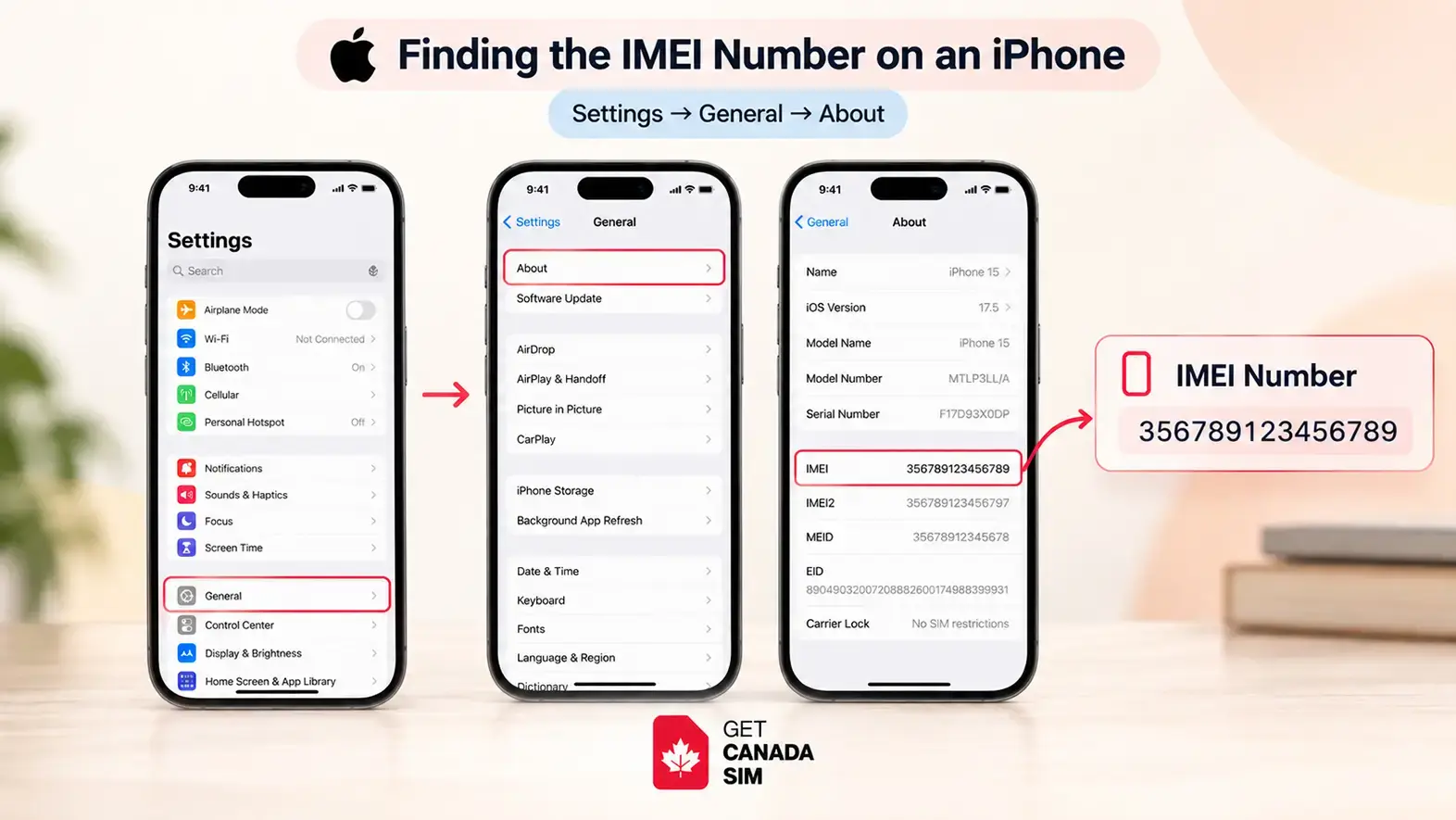
For an iPhone, the most reliable software route is:
Settings → General → About
Scroll down and look for IMEI.
Depending on the model and SIM configuration, you may also see:
- IMEI2
- EID
- ICCID
Apple confirms that these identifiers can be found in the About section.
You can usually press and hold the number to copy it instead of typing all 15 digits manually.
The IMEI may also appear physically on some iPhones
This depends heavily on the model.
Apple documents IMEI/MEID information on the SIM tray for several older iPhone generations, while some still older models have it on the back of the device. Apple also notes that iPhone 14 models and later do not have an IMEI/MEID engraving.
So don't assume that every iPhone has the IMEI printed somewhere you can see.
Settings → General → About remains the simplest place to start.
Finding the IMEI Number on a Samsung Phone
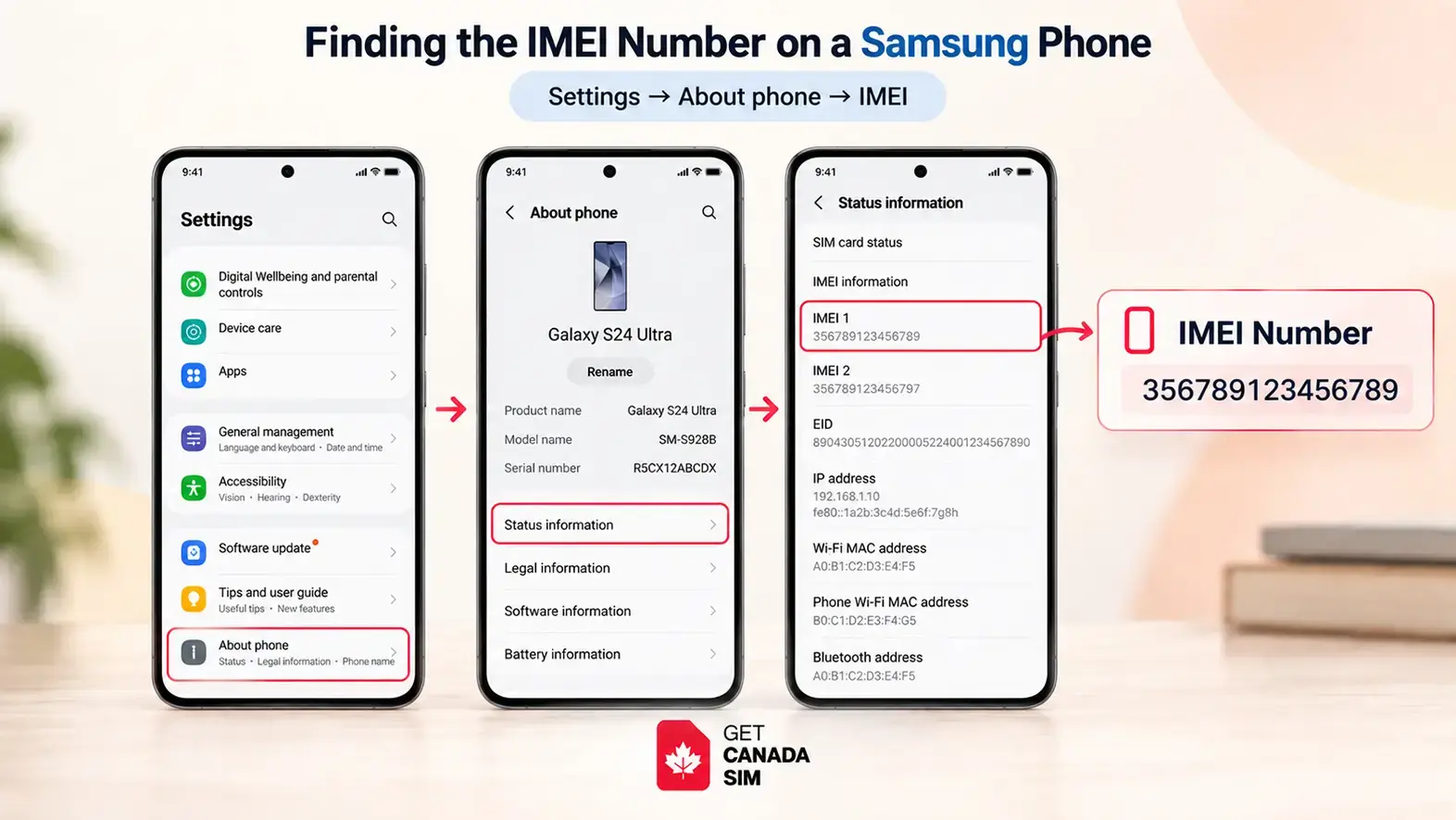
On a Samsung Galaxy phone, open:
Settings → About phone
Your phone's IMEI information should appear there on supported cellular models.
Samsung also supports finding device-identification information using *#06#, although available screens and menu names can differ by model, carrier and software version.
If your Samsung supports two cellular lines, you may see both IMEI1 and IMEI2.
And if you're checking the number because you want to install an eSIM, don't use IMEI alone as proof of eSIM support. Look for the relevant eSIM settings and EID as well.
Finding the IMEI Number on Other Android Phones
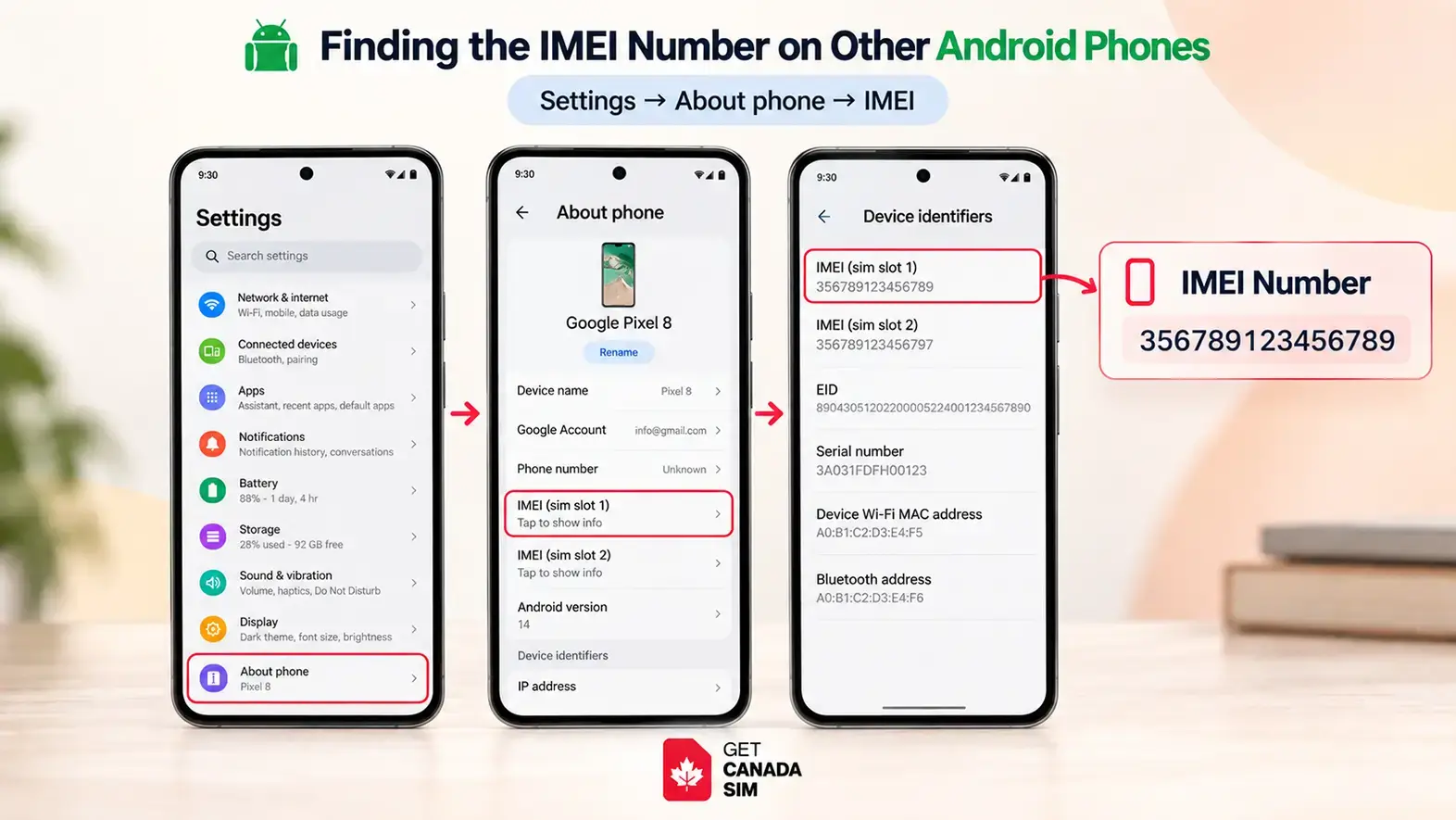
Android phones from Google, Motorola, OnePlus, Xiaomi and other manufacturers do not all use identical menus.
A common route is:
Settings → About phone
From there, look for something such as:
IMEI
Device identifiers
Status
or
IMEI information
On many Android devices, *#06# is still the fastest method.
The exact labels can change with the manufacturer and Android version, so don't worry if your menu does not match another phone word for word.
Finding an IMEI Without Having the Phone in Your Hand
The IMEI becomes especially important when the phone is the one thing you don't have.
Maybe it was lost.
Maybe it was stolen.
Maybe the screen is broken.
Or perhaps the phone won't switch on.
Fortunately, the device itself is not always the only place the IMEI can be found.
Start with the original box
Look at the barcode label on the phone's original packaging.
Manufacturers commonly place identifiers such as the IMEI and serial number there.
Apple specifically confirms that original device packaging can show the IMEI/MEID, EID and serial information.
If you keep expensive-device boxes, this is one surprisingly good reason not to throw them away immediately.
iPhone owners can check their Apple Account
If the iPhone is associated with your Apple Account, Apple allows you to sign into the account, open the Devices section and select the device to view identifiers including IMEI/MEID where available.
You may also be able to view the information from another Apple device signed into the same account.
Android users can check Find Hub
Google's Find Hub can display the IMEI for supported Android devices.
On the web, you can select the relevant device and open its settings to view the IMEI.
This is particularly useful when the device is missing.
Check your carrier or purchase records
Depending on the provider and where you bought the phone, the IMEI may also appear in:
- carrier account information
- purchase documentation
- device-financing records
- repair records
- receipts or invoices
Availability varies, so treat these as alternative places to look rather than a guarantee.
IMEI and Phone Tracking Are Not the Same Thing
IMEI is often described online as if it were a secret tracking code.
That creates the wrong impression.
Knowing someone's IMEI does not normally give an ordinary person a map showing where that phone is.
IMEI is an equipment identifier used within cellular systems.
Location services such as Apple's Find My or Google's Find Hub are separate systems.
Google's own Android guidance makes this distinction clear in practice: Find Hub can help locate a supported lost Android device, while the IMEI can be obtained from Find Hub and given to a mobile service provider when disabling the device.
So:
IMEI → identifies the cellular device
Find My / Find Hub → consumer tools that can help locate supported devices
Network operators and lawful authorities may have access to network information unavailable to an ordinary person, but that does not turn a 15-digit IMEI into a public live-location tool.
What Someone Can — and Cannot — Do With Your IMEI
Seeing a unique identifier on your phone naturally raises another concern:
Should you keep it private?
Yes, reasonably private—but there is no need to treat it exactly like your banking password.
Knowing your IMEI alone does not normally allow someone to:
- unlock your phone
- read your WhatsApp messages
- see your photos
- access your email
- discover your screen PIN
- sign into your accounts
- see your live GPS location
Your IMEI is an equipment identifier, not an authentication password.
Still, there is little reason to post your complete IMEI publicly.
Device identifiers can potentially be misused as part of fraudulent device reports, impersonation attempts, questionable device-registration activity or social-engineering scams when combined with other information.
A sensible rule is therefore:
Share your IMEI when there is a legitimate reason. Don't publish it for strangers.
Safe Situations for Sharing an IMEI
There are plenty of normal situations where a company may reasonably ask for the IMEI.
For example:
Your mobile carrier
A carrier may use an IMEI when checking a device, troubleshooting service, assessing compatibility or dealing with a lost/stolen handset.
The phone manufacturer
Apple, Samsung or another manufacturer may request device identifiers during support, warranty or repair processes.
Apple, for example, states that a serial number or IMEI may be required for certain Self Service Repair purchases.
A reputable trade-in service
A legitimate trade-in or used-phone business may need device information to identify the exact handset or check its status.
A lost or stolen phone report
Your provider may request the IMEI so the correct device can be identified or disabled.
What should make you cautious is an unexplained request from a stranger.
If someone messages you saying, “Send me your IMEI,” the next step should be finding out who they are and why they need it, not immediately handing over the number.
IMEI Does Not Belong to a Person
An IMEI identifies the device equipment, not the human being holding it.
That distinction matters.
Your phone may be associated with an account, SIM subscription or customer record maintained by a mobile provider, but the IMEI itself is not your name, passport number or phone number.
If you put another compatible SIM into the device, the phone still has its device identity.
If you move your SIM into another phone, that other phone has its own IMEI.
That is another easy way to remember the difference:
SIM moves with your mobile subscription.
IMEI stays with the device.
Cellular Devices Beyond Smartphones Can Have IMEIs
IMEI is not limited to iPhones and Samsung Galaxy phones.
Other devices that connect directly to compatible cellular networks may also have an IMEI, including certain:
- cellular tablets
- smartwatches
- mobile hotspots
- routers
- vehicle communication systems
- industrial equipment
- Internet of Things (IoT) devices
For example, Apple documents an IMEI on Apple Watch GPS + Cellular models, while non-cellular variants do not use one for mobile-network connectivity.
Google similarly notes that some devices, such as the Pixel Tablet, do not have an IMEI.
So an IoT device does not automatically require an IMEI simply because it is an “IoT device.”
What matters is how the device connects.
A Wi-Fi-only smart device may have no need for an IMEI at all.
A device with a cellular modem designed to connect to a relevant mobile network generally needs the appropriate mobile-equipment identification.
When Your IMEI Becomes Useful
For most of the time, you can safely forget that your IMEI exists.
Then one day you change phones, switch networks or lose the device—and suddenly those 15 digits matter.
Common situations include:
Changing mobile carriers
A provider may use device information as part of determining whether your handset is suitable for its service.
Checking a used phone
Before buying a second-hand device, its identity and lost/stolen status may be worth verifying through legitimate services available in your market.
Reporting a lost or stolen device
The IMEI helps identify the handset involved.
Getting manufacturer support
A manufacturer or repair service may use the identifier to determine exactly which device is being handled.
Checking mobile compatibility
IMEI-related information can help identify a device, although IMEI alone does not guarantee that the phone will work on a particular network.
And that last point is especially important when travelling.
Why IMEI Matters When You Change SIM or eSIM
Suppose you're moving from your current carrier to another one.
Three different things are involved:
Your phone
Your SIM/eSIM
The mobile network
Your IMEI relates primarily to the first one.
The SIM or eSIM provides the subscription information used to access mobile service.
The mobile network still needs to support the device you're trying to connect.
That is why inserting a different SIM does not magically make every phone compatible with every mobile provider.
Similarly, switching from a physical SIM to an eSIM does not automatically solve compatibility or carrier-lock problems.
Our guide to using eSIM on a locked phone explains why eSIM compatible and carrier unlocked are two separate checks.
IMEI Matters Before Bringing a Phone to Canada Too
If you're bringing your existing phone to Canada, finding the IMEI is useful—but it should be part of a larger device check.
A sensible order is:
1. Identify your exact phone
Find the model and relevant device information.
2. Make sure the phone is unlocked
Being compatible with SIM or eSIM technology does not mean the device is free from carrier restrictions.
You can use our guide to check whether your phone is unlocked before travelling.
3. Check SIM or eSIM support
If you intend to use eSIM, confirm your exact model rather than assuming every version of a phone supports it.
4. Check network compatibility
The phone still needs to support the relevant network technologies and frequencies.
5. Then compare the mobile service
Once you've established what your phone can use, you can compare current Canada SIM and eSIM plans based on the type of service you actually need.
The order matters.
Check the phone first. Choose the plan second.
It is much easier than discovering a compatibility problem after you've already arranged mobile service.
IMEI Does Not Tell You Everything About Your Phone
IMEI is useful, but don't give those 15 digits more power than they actually have.
Your IMEI does not by itself tell you:
- how much mobile data you have
- what your phone number is
- whether your phone is currently using an eSIM
- whether the device is carrier unlocked
- whether every carrier will support it
- whether you have one or two active mobile plans
- where the phone is sitting right now
- who owns the device
It is one piece of the mobile-device puzzle.
For eSIM support, look at the EID, exact model and device settings.
For your SIM, look at the ICCID and mobile subscription.
For carrier freedom, check the unlock status.
For network use, check device and network compatibility.
And for the equipment itself, that is where the IMEI comes in.
The Simple Way to Remember IMEI
After all the numbers and acronyms, the easiest explanation is still the best one:
IMEI identifies your cellular device.
A standard IMEI is 15 digits. Dual-SIM phones may show IMEI1 and IMEI2. Your SIM has its own identifier, while an eSIM-capable device may also display an EID.
If you forget everything else, remember this:
IMEI = device
ICCID = SIM
EID = eSIM hardware
IMEI2 = another cellular equipment identity on supported devices
And if you're checking these numbers because you're preparing to use the phone in Canada, don't choose a SIM based on IMEI alone.
Start by confirming the phone's unlock status, SIM/eSIM capability and network compatibility. Once those are clear, you can move on to the mobile plan that fits how you'll actually use the phone.
Follow Get Canada Sim on Google
Make Get Canada Sim a preferred source to find our latest Canada SIM and eSIM guides in Google Search.